 )
)Introduction
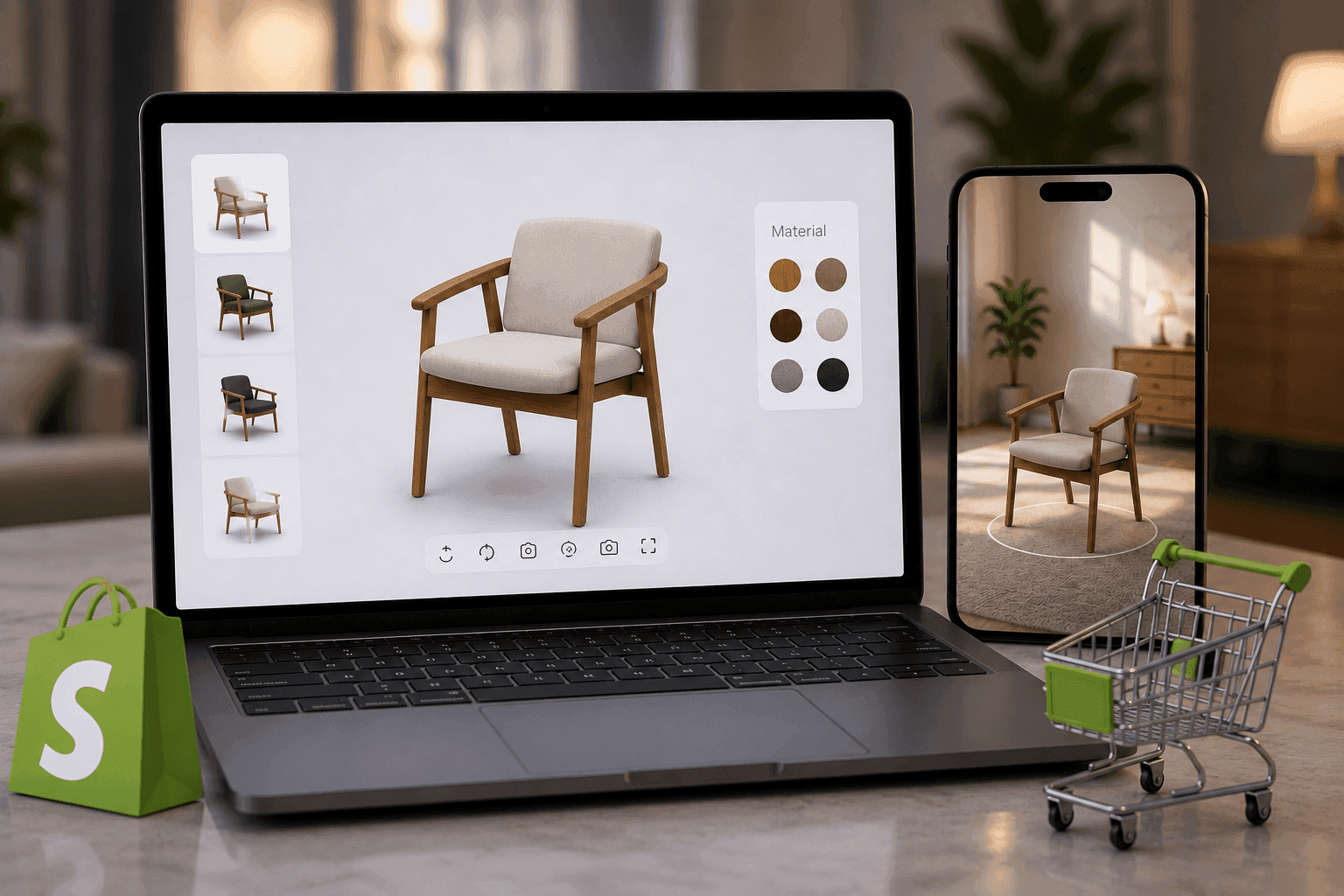
A 360° product view is often a merchant’s first step into 3D commerce. But not all “360 viewers” are the same. Some are photo-based spin viewers: a sequence of images captured around a product. Others are true interactive 3D product viewers that support continuous rotation, zoom, hotspots, variants, AR, and analytics.
The distinction matters because the goal is not “more media.” It is buyer confidence. Shoppers use interactive viewing to answer questions they would normally resolve in-store: What does the finish look like up close? How big is it? Where is the latch? What changes between variants?
For ecommerce teams, the right viewer is also an operational decision. You need assets that can scale, a deployment model that does not slow the product page, and analytics that show whether shoppers actually use the experience. This guide explains the options, evaluation criteria, and rollout steps so interactive 360 product views become a product page optimization initiative—not just a visual add-on.
“Interactive viewing works best when it answers buyer questions in context—without adding friction or slowing the product page.”
Why Product Visualization Matters
Static photography is still essential for ecommerce. It communicates brand mood, shows lifestyle context, and gives shoppers familiar reference points. But photos can fall short when buyers need to inspect details.
Shoppers often struggle to infer:
- Scale and proportions, especially without a known reference object.
- Material cues, such as texture, sheen, stitching, grain, or finish.
- Functional details, including seams, ports, hinges, latches, and mechanisms.
- Variant differences, especially when colors or finishes look similar in swatches.
When these questions remain unanswered, shoppers compensate by zooming into photos, re-reading specs, opening reviews, contacting support, or leaving to compare elsewhere. That hesitation is a confidence problem.
Interactive product visualization helps because it turns passive viewing into active inspection. Rotation, zoom, hotspots, dimensions, and AR let shoppers verify details at their own pace. The experience works best when it reduces uncertainty while preserving speed and usability.
Best practice: Treat interactive 360 product views as an “answer engine” for buyer questions, not a replacement for photography. Keep lifestyle images and use the viewer for inspection-level detail.
360° Photography vs Interactive 3D Models
The terms are often used interchangeably, but the workflows and outcomes are different.
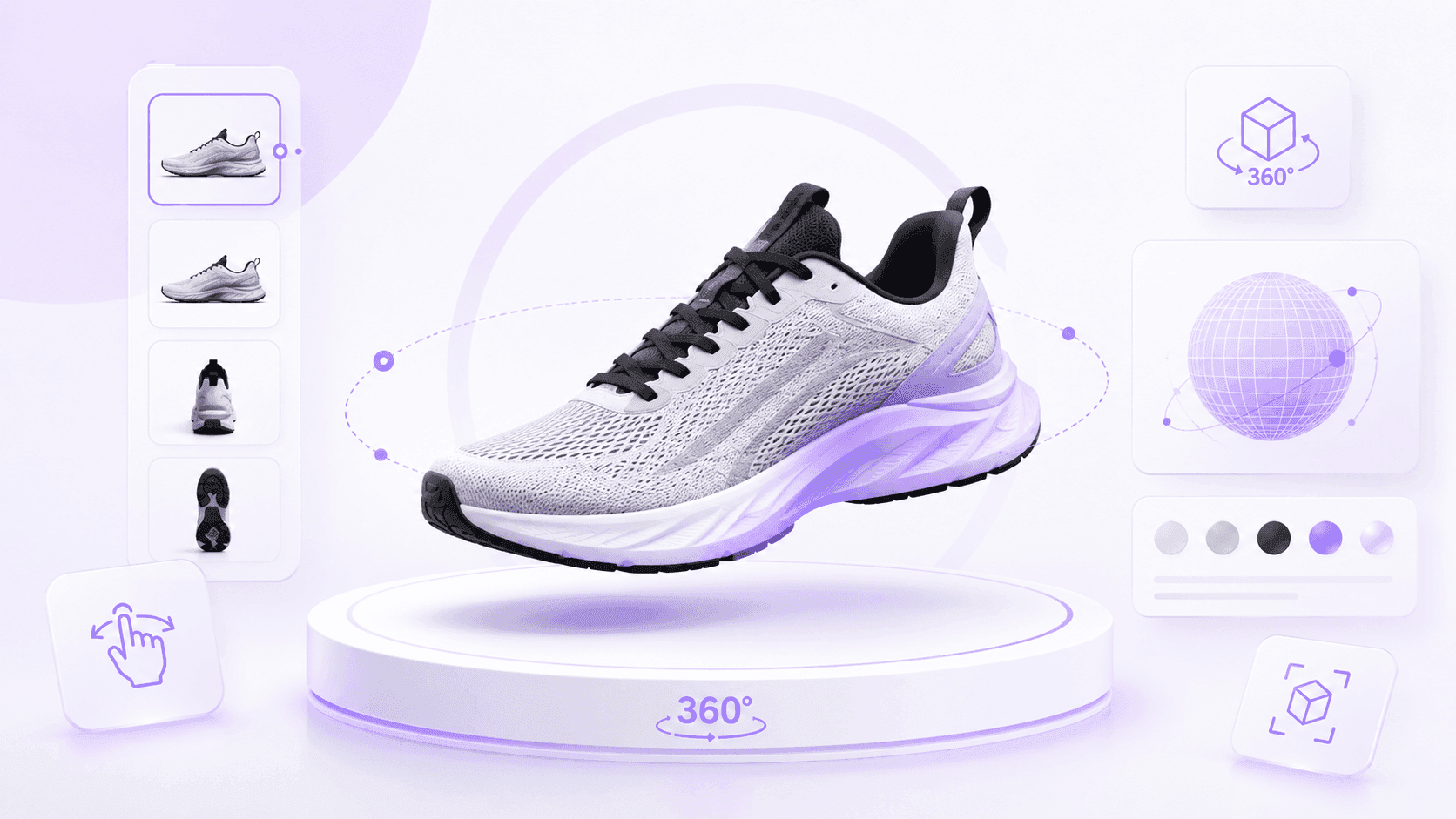
360° photography uses a set of photos captured around a product. The shopper drags or swipes to spin through those frames. It is familiar, realistic, and useful for simple products with limited variants.
Interactive 3D models use a real-time rendered 3D asset. The shopper can rotate continuously, zoom, and—depending on the platform—use hotspots, switch variants, view dimensions, launch AR, and generate analytics.
| Topic | Photo-based 360 spin | Interactive 3D viewer |
|---|---|---|
| Asset creation | Turntable photography and image editing | 3D model preparation, materials, lighting, and QA |
| Variant support | Usually separate image sets per variant | Material/color/configuration switching can map to SKUs |
| Interactivity | Mostly rotate and basic zoom | Rotate, zoom, hotspots, dimensions, variants, AR, analytics |
| Best fit | Simple, stable catalogs | High-consideration, detail-sensitive, variant-heavy, or size-critical products |
Photo-based spins can be a practical first step when the product is simple and the goal is “show more angles.” But for products where buyers need to inspect materials, compare variants, understand scale, or place the product in their environment, a 3D viewer is usually a stronger foundation.
RenderEase’s documented capabilities—real-time 360° viewing, PBR material and color swapping, SKU-mapped variants, hotspots, dimension overlays, WebAR, and analytics—align with this model-based approach.
“Choose the simplest approach that still answers buyer questions—then invest in interactivity where it reduces uncertainty.”
What Makes a Great Interactive Viewer
A great ecommerce product viewer is not defined by a long feature list. It is defined by how well it performs under real shopping conditions: mobile screens, impatient attention, varied networks, and buyers who need answers quickly.
1) Smooth Rotation
Rotation is the first impression. If the viewer stutters, lags, or behaves unpredictably, shoppers may abandon it and return to static photos.
A strong viewer should:
- Respond immediately to drag and swipe gestures.
- Feel smooth on mid-range mobile devices, not only high-end phones.
- Use intuitive controls: drag to rotate, pinch to zoom, and clear reset behavior.
- Provide a subtle cue such as “Drag to rotate” so shoppers know it is interactive.
Smooth rotation reveals construction details, product shape, edges, seams, and mechanisms. Treat it as a usability requirement, not just a visual feature. RenderEase documents a Real-Time 360° Product Viewer, which supports this interaction-first expectation.
2) Zoom
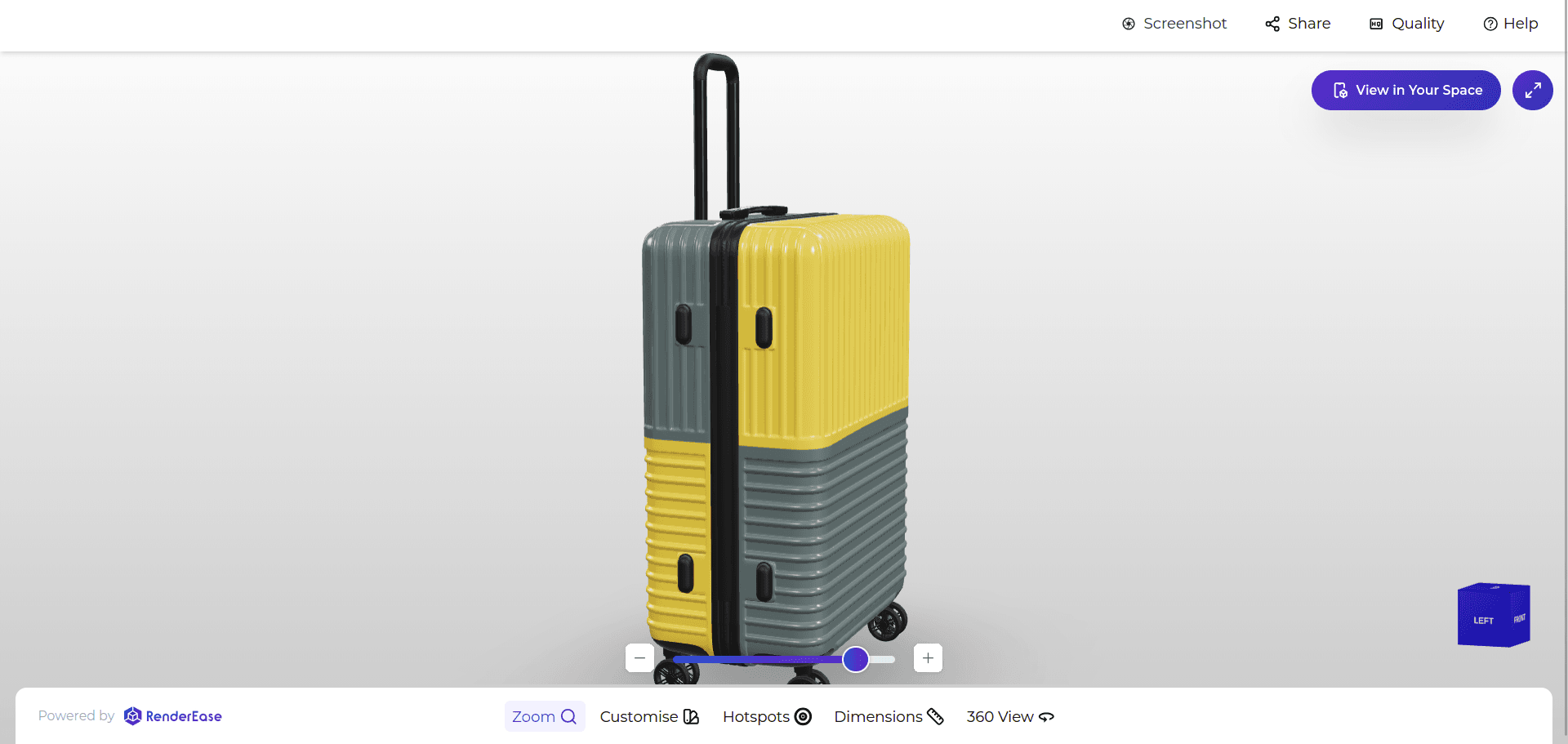
Zoom turns a 360/3D experience into a decision tool. Shoppers zoom because they are checking risk: material finish, stitching, hardware, ports, texture, and build quality.
Good zoom requires strong underlying assets. In photo-based spins, that means high-resolution frames. In 3D, it means credible materials, textures, and lighting. Avoid enabling deep zoom if the result looks pixelated or fake.
Best practices:
- Keep zoom gestures predictable on mobile and desktop.
- Cap zoom levels so shoppers do not lose the product.
- Pair zoom with hotspots where details need explanation.
3) Interactive Hotspots
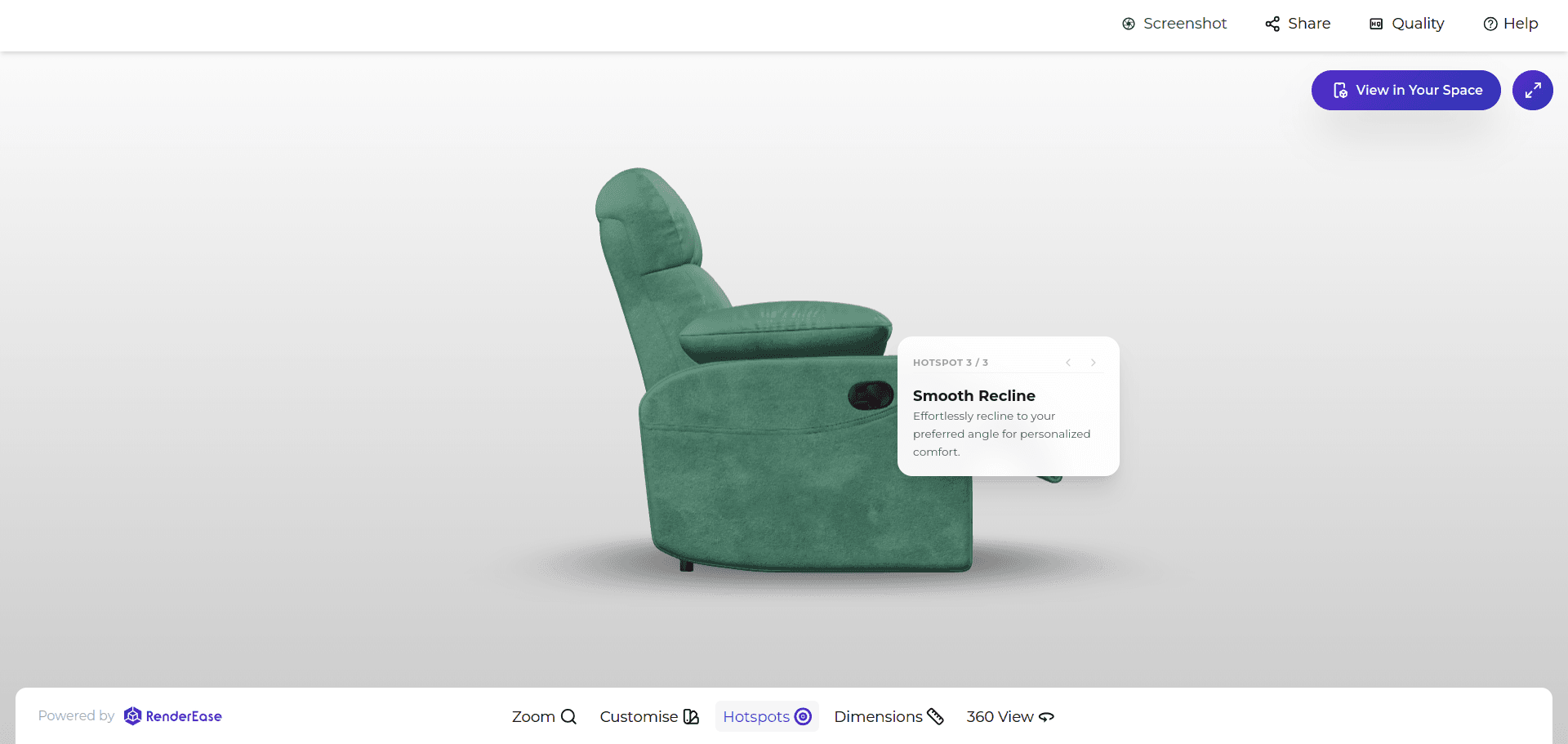
Hotspots turn viewing into understanding. Instead of forcing shoppers to scroll through specs, they attach short explanations to the exact feature being inspected.
Good hotspots answer practical questions:
- What is this feature?
- Why does it matter?
- How does it affect use, quality, fit, or durability?
Start with 3–6 hotspots per product. Prioritize buyer objections, frequent support questions, key differentiators, and fit-related details. Too many hotspots create clutter, especially on mobile. RenderEase documents Interactive Hotspots for feature and spec callouts.
4) Dimension Overlays
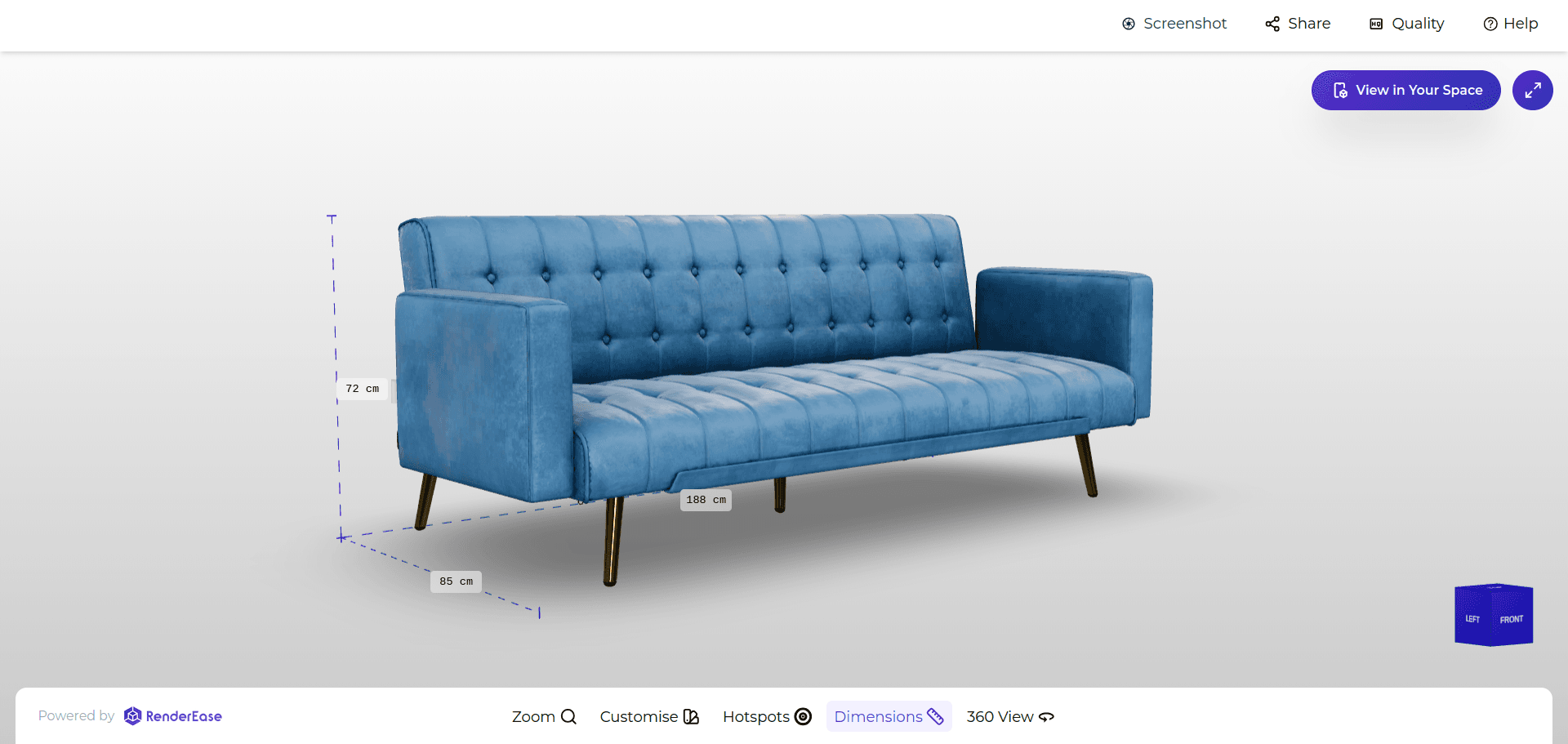
Dimension overlays help shoppers understand scale. They are especially useful for furniture, appliances, home décor, baby products, industrial products, and any category where “Will it fit?” drives hesitation or returns.
The key is accuracy. Measurements must be validated before launch. Show only the dimensions that influence purchase decisions—usually 2–4—not every possible measurement.
Best practices:
- Use consistent units.
- Keep labels readable on mobile.
- Pair measurements with guidance such as “Measure this clearance before ordering.”
RenderEase documents Dimension Overlays for size-critical products.
5) Variant Switching
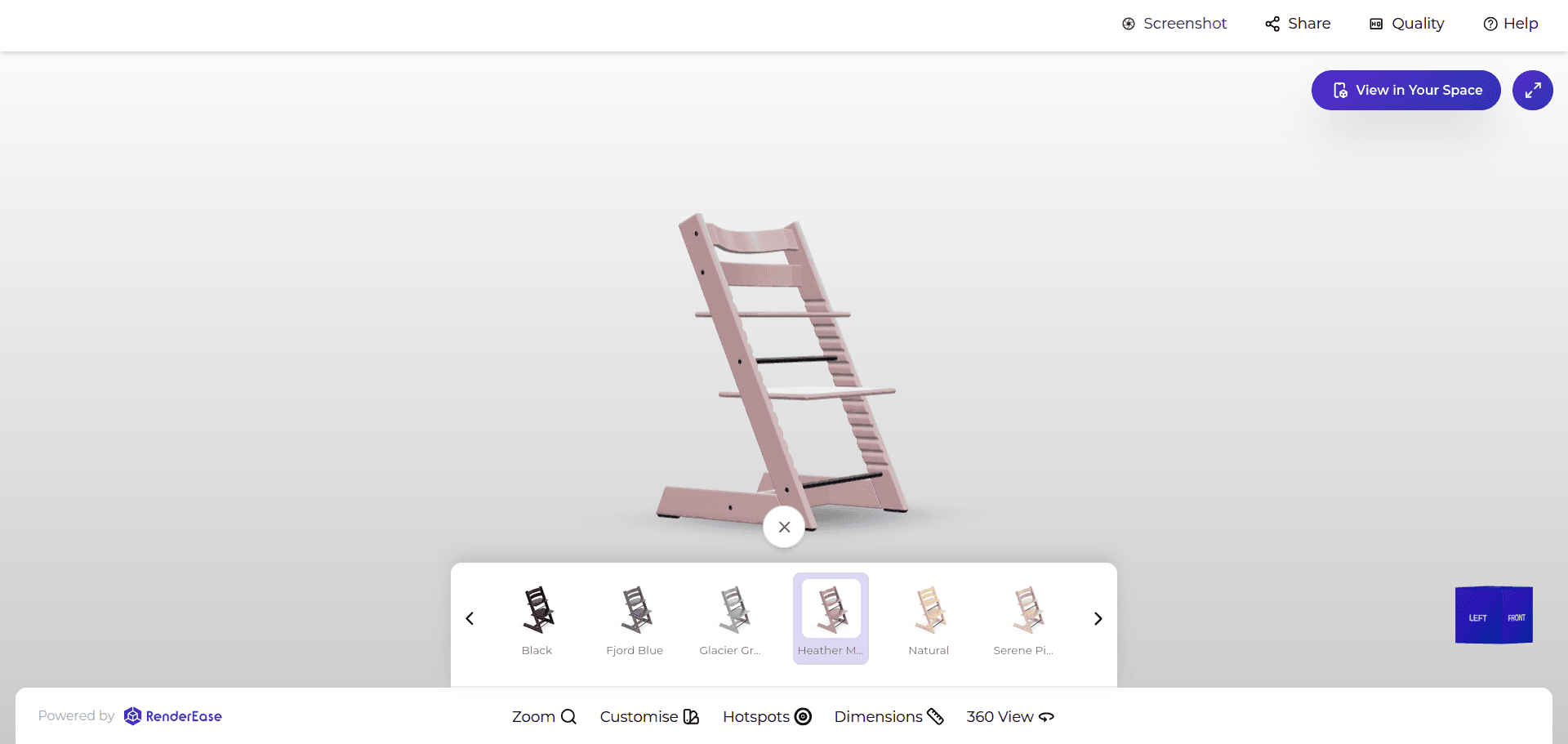
Variant switching is powerful when shoppers need to compare colors, finishes, materials, or configurations. It is also where many implementations fail.
A strong variant experience should:
- Map visual states directly to SKUs.
- Keep lighting and camera angle consistent across variants.
- Use accurate materials rather than simple color overlays when texture matters.
- Switch quickly without feeling like a full reload.
RenderEase documents PBR Material & Color Swapping and Real-Time Variant Switching mapped to SKUs, which are important for variant-heavy catalogs.
6) WebAR
WebAR lets shoppers place a product in their environment from a mobile browser, without downloading an app. It is most valuable when scale, placement, and context affect the decision.
Use AR for products where “View in your space” answers a real question: furniture, décor, appliances, fixtures, and other size-dependent products. Do not add AR only because it feels novel.
Best practices:
- Use a clear “View in your space” trigger.
- Validate true-to-scale dimensions.
- Provide simple onboarding for scanning and placement.
- Track AR launches and downstream behavior.
RenderEase documents an AR launch toggle and no-app WebAR viewer.
7) Behavioral Analytics
Analytics turns interactive viewing into an optimization program. Page views alone cannot show whether shoppers understood the product. Interaction data gets closer to intent.
Useful metrics include:
- Viewer sessions
- Dwell time
- Rotation and zoom usage
- Hotspot clicks
- Variant engagement
- AR launches
- Conversion lift or assisted conversion signals
Use these metrics to improve the experience. If hotspot clicks are high, that feature may be a top buyer question. If dwell time is high but conversion is low, the viewer may be engaging but another blocker—price, shipping, trust, or unclear CTA—may remain.
RenderEase documents behavioral analytics across sessions, dwell time, hotspot interactions, variant engagement, AR launches, and conversion lift.
Buyer Evaluation Framework
Use this framework to evaluate a 360 product viewer, ecommerce product viewer, or full 3D commerce platform.
Usability
Ask whether shoppers can understand the viewer instantly. Test rotation, zoom, hotspots, and reset behavior on mobile. Warning signs include laggy movement, tiny tap targets, confusing gestures, or hidden controls.
Deployment
A good solution should be easy to launch without heavy theme rewrites. Ask whether deployment uses a simple embed, how placement is controlled, how updates are versioned, and how rollback works. RenderEase documents a One-Line Embed for storefront integration.
Catalog and Variant Fit
The viewer must align with your catalog logic. Ask how variants map to SKUs, how assets are managed, and how material or dimension updates are made. If every product requires manual setup, scaling becomes difficult.
Analytics
Avoid platforms that only report “widget views.” Look for interaction events: rotate, zoom, hotspots, variants, AR, dwell time, and conversion-related reporting. Analytics should help you optimize merchandising, not just justify the launch.
Scalability and Maintainability
The workflow that works for 10 SKUs may fail at 500. Ask how new products are added, how QA is handled, how templates are reused, and how updates are approved. Ownership should be clear across ecommerce, creative, product, and engineering teams.
Mobile UX and Accessibility
Mobile is often the main shopping surface. Controls must be thumb-friendly, readable, responsive, and accessible. Important information should not be locked only behind visual hotspot taps; provide text alternatives where possible.
Performance
A viewer that slows the product page can erase the benefits of better visualization. Ask about lazy loading, compression, progressive loading, CDN delivery, and Core Web Vitals impact.
Performance & SEO Considerations
Interactive 360/3D viewers can improve buyer understanding, but they must be implemented carefully.
Watch these Core Web Vitals:
- LCP: Do not let a heavy viewer become the largest element that loads late.
- INP: Avoid scripts that slow responsiveness across the page.
- CLS: Reserve space for the viewer so late loading does not shift layout.
Performance best practices:
- Lazy load the viewer when appropriate.
- Compress 3D models, textures, or image frames.
- Use CDN delivery for heavy media.
- Support progressive loading so shoppers can interact quickly.
- Test on real mobile devices and slower networks.
For SEO, keep important product information available as HTML text. Do not hide critical specs, descriptions, or FAQs only inside an interactive experience. The viewer should complement searchable content, not replace it.
Expert tip: Performance is part of ecommerce UX. If the viewer loads slowly, you are trading confidence for friction.
Designing a Better Product Page
Interactive viewing should be designed into the product detail page, not bolted on.
Place the viewer where shoppers can discover it quickly—often in the primary media gallery, as the first or second media item, or behind a clear “360/3D View” toggle above the fold. If the viewer is hidden below the fold, usage will likely be low.
Practical PDP guidelines:
- Use a distinct 360/3D thumbnail in the media gallery.
- Add microcopy such as “Drag to rotate, pinch to zoom.”
- Keep Add to Cart visible and stable.
- Avoid overlapping viewer controls with product options or checkout CTAs.
- Provide a reset view if shoppers rotate or zoom too far.
- Consider a hotspot list or text summary for accessibility.
The goal is to make interactive inspection feel like a natural part of shopping—not a separate experience that competes with buying.
Implementation Roadmap
Use a focused rollout instead of launching across the entire catalog at once.
Step 1: Select pilot SKUs
Start with 5–10 products where uncertainty is high and business value is meaningful. Choose a mix of:
- A hero product
- A variant-heavy product
- A size-critical product
- A detail-sensitive product
Step 2: Prepare assets
For 3D, validate model quality, scale, materials, lighting, and texture detail. For photo-based 360, standardize lighting, angles, and frame count so rotation feels smooth.
Step 3: Validate dimensions and variants
Confirm measurement sources and SKU mappings before launch. Inaccurate dimensions or wrong variant mapping damages trust immediately.
Step 4: Create buyer-focused hotspots
Plan 3–6 hotspots around real shopper questions: objections, usage steps, differentiators, materials, and fit details. Keep copy short and practical.
Step 5: Test performance and UX
Before launch, test on mobile, slower networks, and live PDP layouts. Check load time, rotation smoothness, zoom behavior, hotspot readability, AR launch flow, and layout stability.
Step 6: Launch with clear cues
Label the viewer clearly. Use microcopy and visible thumbnails so shoppers understand the experience is interactive.
Step 7: Optimize with analytics
Review sessions, dwell time, interaction rate, hotspot clicks, variant engagement, AR launches, and conversion signals. Use the data to refine camera angles, hotspot copy, asset quality, and placement.
Best practice: Treat interactive viewing as a merchandising system. Launch is the start of learning, not the finish line.
Analytics: What to Measure
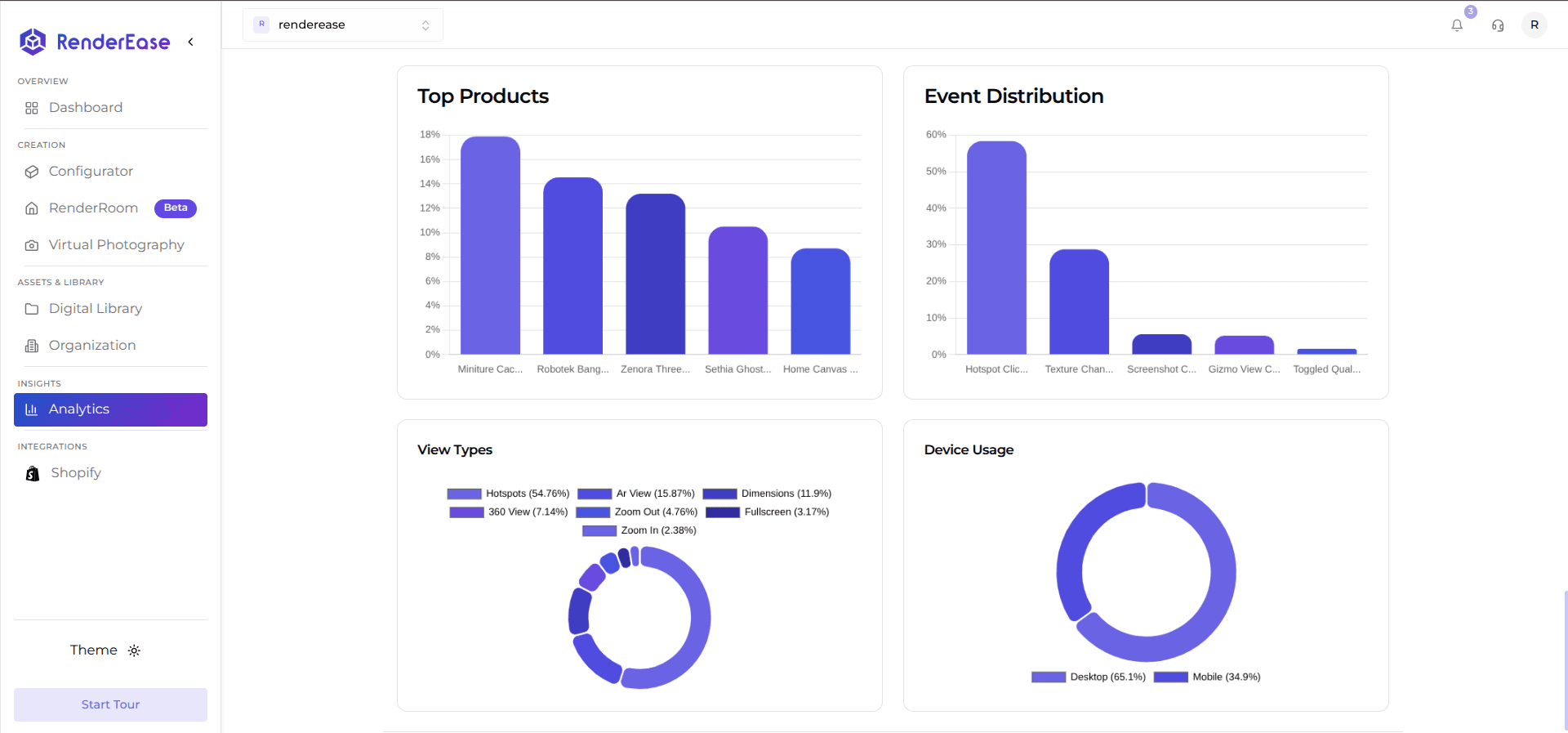
Interactive analytics should answer two questions: “Did shoppers use it?” and “Did it help them decide?”
- Sessions: Shows whether shoppers are exposed to or engaging with the viewer. Low sessions may indicate poor discoverability.
- Dwell time: Shows inspection depth. High dwell can mean interest or confusion, so compare it with downstream behavior.
- Interaction rate: Tracks rotation, zoom, and hotspot usage. Low interaction may indicate confusing controls or slow load.
- Hotspot clicks: Reveals which features or questions matter most to shoppers.
- Zoom usage: Indicates detail inspection. Heavy zoom usage means asset quality must hold up close.
- Variant engagement: Shows whether shoppers compare options. It is especially important for color, finish, and configuration-heavy products.
- AR launches: Indicates scale or placement validation.
- Conversion lift: Useful, but interpret carefully. Control for product differences, seasonality, traffic source, and merchandising changes.
Use analytics as product research. The goal is not only to prove that the viewer was seen, but to learn what buyers needed to understand before purchasing.
Comparison: Interactive Viewing Options
| Option | Implementation effort | Maintenance | Flexibility | Best use case |
|---|---|---|---|---|
| Photo-based 360 spin | Low–Medium | Medium | Low | Simple products where shoppers mainly need more angles |
| Embedded 3D viewer | Medium | Medium | Medium | Products that need better inspection through rotation, zoom, and hotspots |
| Full 3D commerce platform | Medium–High | Medium–High | High | Variant-heavy, size-critical, or high-consideration catalogs needing AR and analytics |
How to decide:
- If you need a quick upgrade from static photos, start with a photo-based 360 spin.
- If product understanding is the main issue, prioritize a 3D product viewer with zoom and hotspots.
- If variants, scale, AR, and optimization matter, choose a platform approach.
RenderEase’s capabilities align with the platform path: real-time 360 viewing, hotspots, variants, WebAR, one-line embed deployment, and behavioral analytics.
Common Mistakes
Mistake 1: Poor hotspot placement
Hotspots should answer buyer questions, not mirror internal feature lists. Use support tickets, reviews, and objections to decide what deserves a callout.
Mistake 2: Oversized assets
Visual quality matters, but not at the expense of speed. Set an asset budget, compress files, use progressive loading, and test on real mobile networks.
Mistake 3: Confusing controls
If shoppers do not know how to rotate, zoom, or reset, they will not use the viewer. Use standard gestures and simple microcopy.
Mistake 4: Inaccurate dimensions
Dimension overlays only build trust if they are correct. Validate measurements and show only the dimensions that affect the purchase decision.
Mistake 5: Inconsistent variants
Variant switching must match SKU logic and product page naming. Lighting, color, and material behavior should remain consistent across options.
Mistake 6: Hidden viewer entry point
If “View in 3D/360” is buried, usage will be low. Place it above the fold or in the primary media gallery with a recognizable thumbnail.
Mistake 7: No analytics plan
Without interaction data, you cannot improve the experience or understand ROI. Define events and success metrics before launch.
Expert Tips
Expert tip #1: Default the camera angle to the buyer’s biggest question, not simply the prettiest angle.
Expert tip #2: Use hotspots to reduce spec overload. Translate the top specs into “why it matters” explanations.
Expert tip #3: Treat WebAR as a fit validation tool. If AR does not answer a real shopper question, do not prioritize it.
Expert tip #4: Build a repeatable viewer QA checklist: rotation, zoom, hotspots, variants, dimensions, AR, performance, and mobile usability.